
If your interface is different, view the "classic" version of this article.
Your may want to limit who in your account can use your library of templates. You can assign permissions to templates that you want to "protect" from being changed so that access to these templates is restricted to authorized users only. Users who have not been granted permission will not even see the "protected" templates when creating a new message.
There are two ways to assign template permissions: by login and by template. Using the login method, you select a user and then choose which templates will be accessible. When you assign permissions by template, you choose a template and then which users can access it. Both methods are described below.
- Access the Admin interface.
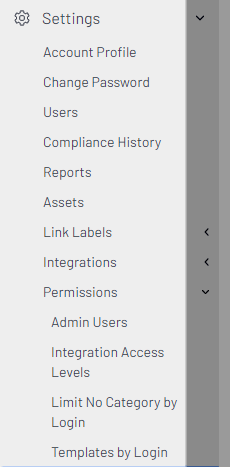
- Navigate to Settings > Permissions > Templates by Login.
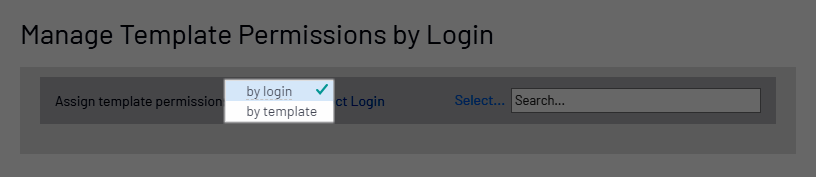
- In the upper portion of the page, use the default, login, or click the dashed underline (_ _ _) to select template.
- Click Select Login/Select Template to access the associated list.
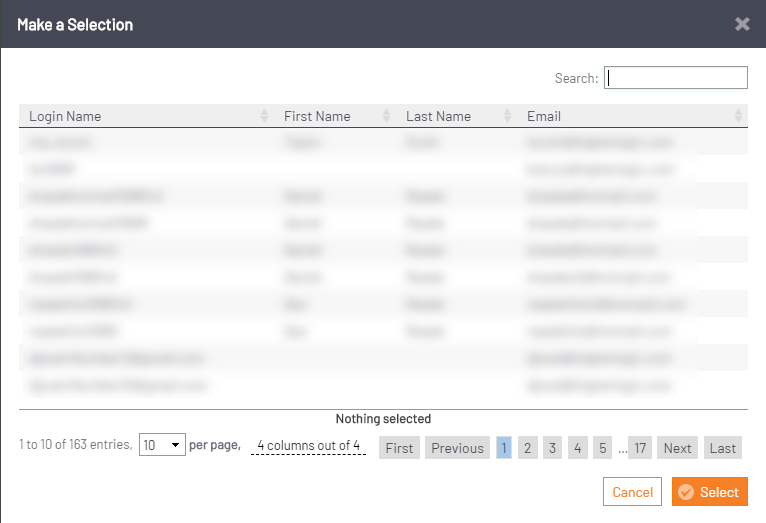
- Select a login (or a template) and click Select.
Login permissions
When assigning permissions by login, you'll have just chosen the user you'll be authorizing. The chosen login displays in the header and the page populates with all your account templates.
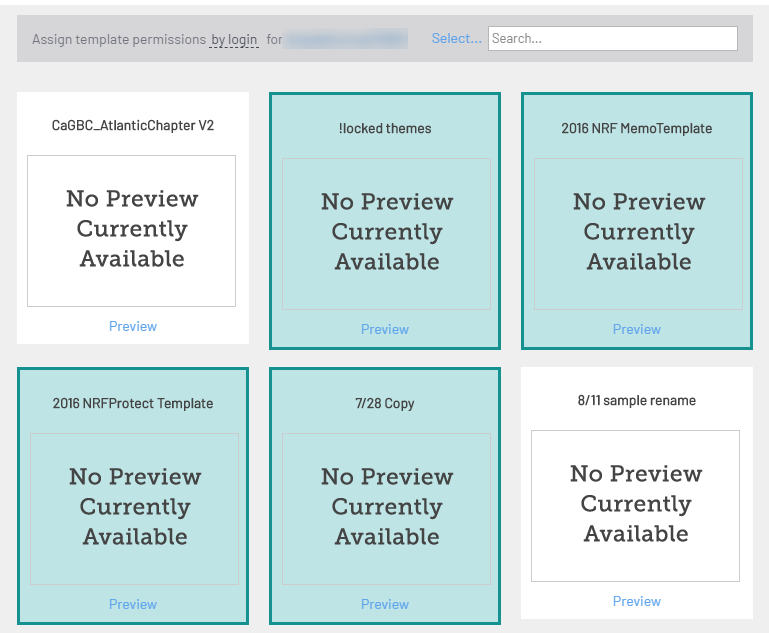
By default, all templates are selected (highlighted) and are available to the user.
- Click a template to deselect it; the highlighting is removed and the template is no longer available to the user.
- Scroll to the bottom of the page and click Save.
- Scroll to the top of the page to assign more template permissions.
Template permissions
When assigning permissions by template, you'll have just chosen the template you'll be authorizing. The name of the chosen template displays in the header and the page populates with all your user logins.
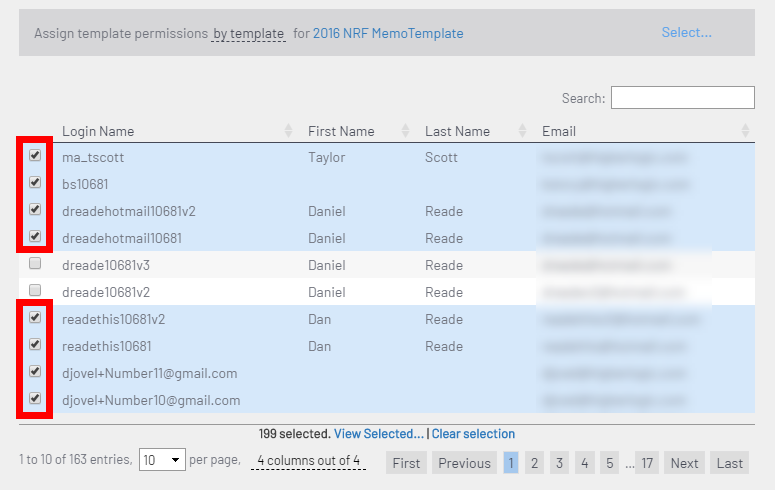
By default, all users are selected (highlighted) and are authorized to use the template.
- Click individual users to deselect them; the highlighting is removed and the template is no longer available to the user.
- Scroll to the bottom of the page and click Save.
- Scroll to the top of the page to assign more template permissions.
Comments
0 comments
Please sign in to leave a comment.